How to install liquid cooler?
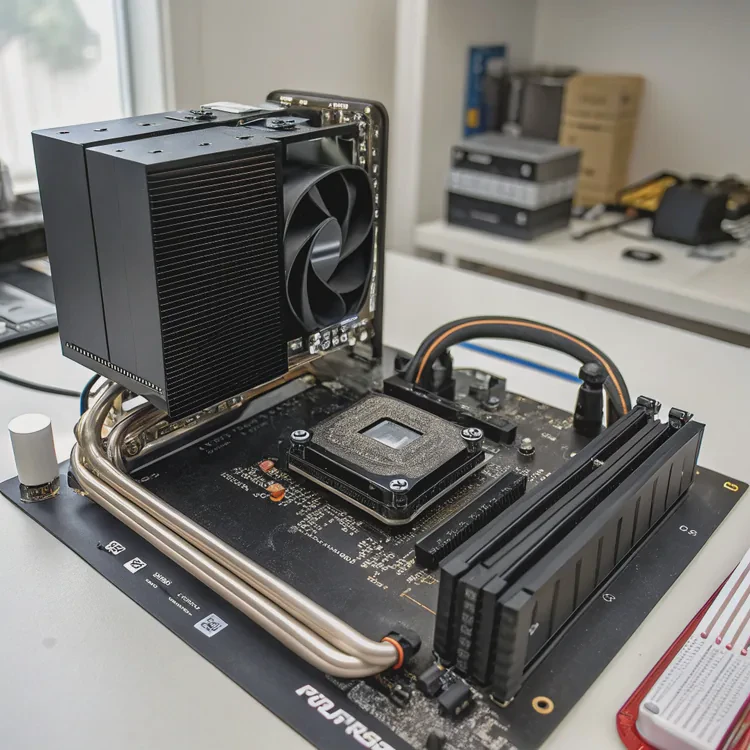
Modern CPUs and GPUs generate more heat than ever. If that heat isn’t managed properly, performance drops and components can wear out faster. That’s where liquid coolers come in — powerful systems that deliver quiet and efficient cooling. But to get the best performance, you need to install them correctly.
Installing a liquid cooler involves mounting the radiator and fans, attaching the pump block to the CPU, connecting cables, and managing airflow to ensure efficient cooling and quiet operation.
In this guide, you’ll learn what a liquid cooler system is, why proper installation matters, how to set it up step-by-step, and what new installation trends are shaping the future of cooling systems.
What is a liquid cooler system?
A liquid cooler system is a thermal management solution that uses liquid — not air — to transfer heat away from your CPU or GPU. It’s more efficient because liquids conduct heat much faster than air.
A liquid cooler system circulates coolant through a closed loop, moving heat from the CPU to a radiator where it’s released into the air by fans.
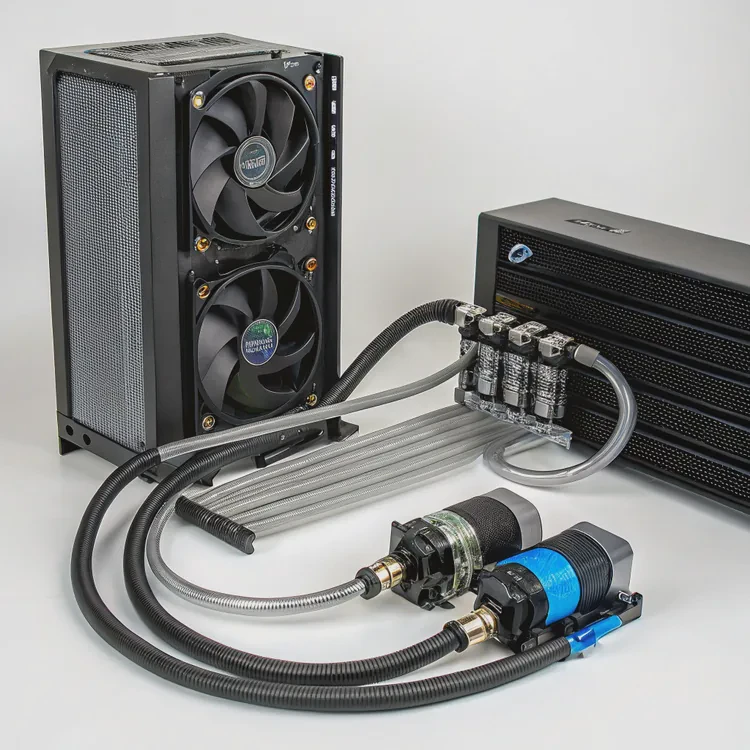
Here’s how the cooling loop works:
- A cold plate or pump block is mounted on top of the CPU.
- The coolant inside the block absorbs heat from the CPU.
- A pump circulates the warm coolant through tubes to the radiator.
- The radiator disperses the heat into the air, assisted by fans.
- The cooled liquid returns to the cold plate, repeating the process.
Core Components
| Component | Function |
|---|---|
| Cold Plate | Absorbs heat from the CPU surface |
| Pump | Circulates coolant through the system |
| Tubing | Connects the block and radiator |
| Radiator | Releases heat into the air |
| Fans | Move air through the radiator fins |
| Coolant | Liquid that transfers heat |
Types of Liquid Coolers
- AIO (All-In-One) – Pre-filled and sealed. Easy to install and requires no maintenance.
- Custom Loops – Modular systems that allow complete customization. Designed for enthusiasts who need maximum cooling and flexibility.
AIO coolers are popular for everyday builders, while custom loops are used in high-end PCs and workstations where extreme cooling is needed.
Why is installation important?
Even the best cooler can’t perform properly if it’s installed incorrectly. Poor installation can cause leaks, overheating, or even permanent damage to the CPU.
Proper installation ensures maximum heat transfer, quiet operation, and system stability, extending both the cooler’s and the CPU’s lifespan.
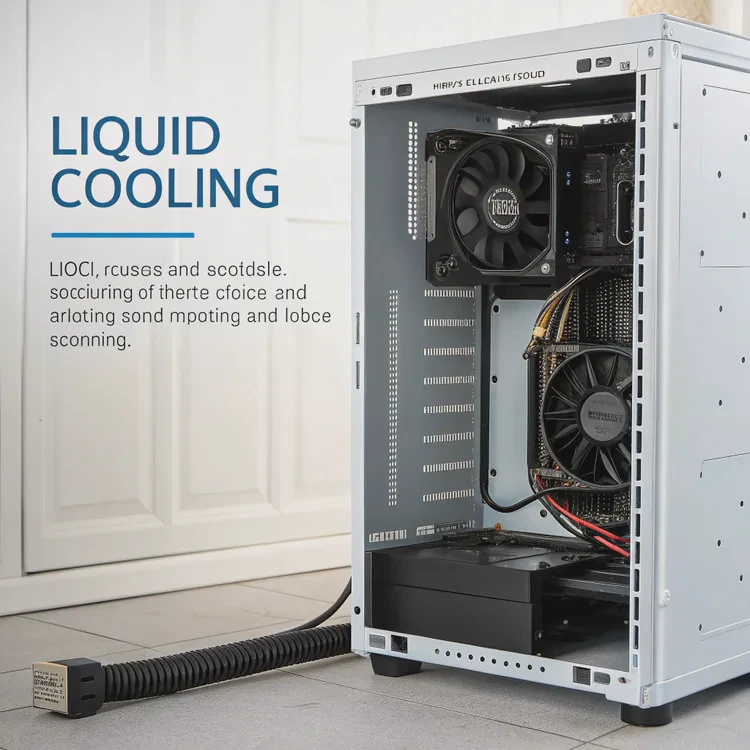
Here’s why correct installation is critical:
1. Ensures Optimal Thermal Contact
When the pump block doesn’t sit evenly on the CPU, heat can’t transfer efficiently. This leads to higher temperatures and reduced performance. Proper thermal paste application and even mounting pressure are essential.
2. Prevents Air Bubbles and Leaks
Incorrect radiator placement can trap air inside the loop. Air bubbles reduce coolant flow and cooling performance. A secure, well-positioned installation prevents these issues.
3. Improves Airflow and Efficiency
Proper radiator and fan orientation ensures good case airflow. Cool air enters from the front or bottom, while hot air exits through the top or rear. Balanced airflow keeps the entire system cool and quiet.
4. Reduces Noise
Loose fans or pumps can vibrate against the case, creating extra noise. Tightening mounts and cable-managing correctly ensures silent operation.
5. Extends System Lifespan
When your system stays cool and runs smoothly, it lasts longer. Stable thermal conditions reduce wear on electrical components and prevent thermal throttling.
Common Installation Mistakes to Avoid
| Mistake | Result |
|---|---|
| Pump installed above radiator | Air bubbles and poor cooling |
| Uneven thermal paste spread | High CPU temperatures |
| Fans facing wrong direction | Weak airflow |
| Loose brackets or screws | Noise and vibration |
| Ignoring cable management | Poor airflow and messy setup |
Taking a careful, methodical approach prevents these problems and guarantees reliable, quiet cooling.
How to install it for best results?
Installing a liquid cooler may look complicated, but it’s simple once you follow the steps in order.
To install a liquid cooler correctly, mount the radiator and fans first, attach the pump block to the CPU, connect all power cables, and verify performance through temperature monitoring.

Step 1: Prepare Your Workspace
- Turn off your PC and unplug all cables.
- Remove both side panels of your case.
- Place your system on a clean, flat surface with good lighting.
- Have a screwdriver and the cooler’s mounting kit ready.
Make sure your case supports the size of your cooler (120mm, 240mm, 360mm, etc.).
Step 2: Mount the Radiator
Choose a mounting location:
- Top of case: Best for exhausting hot air.
- Front of case: Best for pulling in cool air and lowering CPU temps.
- Rear of case: Good for small builds.
Attach the radiator using the screws provided. Ensure the tubes are not kinked or strained — they should have a natural curve toward the pump block.
Step 3: Install the Fans
If your cooler’s fans aren’t pre-installed, screw them onto the radiator now. Follow the arrows on the fan housing to ensure correct airflow direction:
- Intake: Air moves into the case.
- Exhaust: Air moves out of the case.
Secure all screws evenly, but don’t overtighten.
Step 4: Apply Thermal Paste
If the cooler doesn’t come with pre-applied paste, place a pea-sized dot of thermal paste in the center of your CPU. This ensures even coverage when the cold plate is mounted.
Step 5: Mount the Pump Block
- Attach the appropriate backplate to the rear of your motherboard.
- Align the pump block over the CPU and attach the mounting brackets.
- Tighten screws in a diagonal pattern to apply even pressure.
- Don’t overtighten — it can damage the CPU socket.
Step 6: Connect Power Cables
- Plug the pump cable into the CPU_FAN or PUMP_FAN header.
- Connect the radiator fan cables to FAN headers or a fan controller.
- Attach RGB or ARGB cables to the appropriate lighting headers (if included).
Check that all connections are secure and cables are tidy.
Step 7: Cable Management
Use zip ties to secure cables neatly along the case edges. Good cable management improves airflow and makes your setup look professional.
Step 8: Boot and Test
Reconnect your power cables and turn on your PC.
Enter the BIOS or use software like HWMonitor, CAM, or MSI Afterburner to check CPU temperature.
At idle, temperatures should be around 30°C–35°C, and under heavy load below 70°C.
Step 9: Adjust Fan Curves (Optional)
In BIOS or software, set up a fan curve that adjusts fan speed based on CPU temperature. This keeps noise low during light workloads and ramps up cooling when needed.
Example Temperature Comparison
| Load Type | Air Cooler | Liquid Cooler |
|---|---|---|
| Idle | 40°C | 30°C |
| Gaming | 85°C | 60°C |
| Rendering | 95°C | 65°C |
Step 10: Maintenance Tips
- Clean the radiator and fans every few months.
- Ensure all cables remain secure.
- If you use a custom loop, replace coolant every 12–24 months.
By following these steps, you’ll achieve quiet, reliable, and efficient cooling performance.
What new cooler setups are trending?
Cooling technology continues to evolve rapidly. New designs are focused on smarter control, easier installation, and long-term reliability.
The latest trends in liquid cooler setups include tool-free mounting, AI-controlled pumps, modular components, magnetic connectors, and eco-friendly materials.
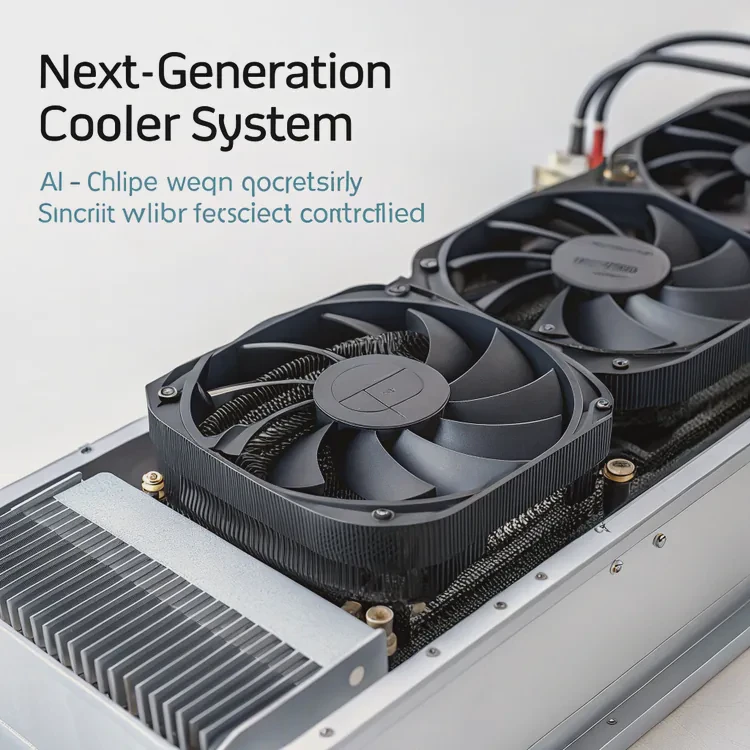
Here’s what’s changing in the world of CPU cooler installation.
1. Tool-Free Mounting Systems
Manufacturers are introducing snap-fit brackets and quick-lock designs that allow coolers to be installed in minutes without screwdrivers. These make upgrades and maintenance faster and safer.
2. Magnetic Connectors
Magnetic fan and pump connectors are replacing traditional cables. They attach securely and align automatically, simplifying cable management and preventing pin damage.
3. Smart and AI-Controlled Cooling
Next-gen coolers include AI chips that monitor CPU load and ambient temperature, adjusting fan and pump speeds automatically. This optimizes performance while keeping noise levels minimal.
4. Modular Radiators and Pumps
Some manufacturers are introducing modular cooling systems that allow users to swap out radiators, pumps, or fans without replacing the entire unit. This extends the system’s lifespan and reduces waste.
5. Microchannel Cold Plate Designs
The latest cold plates feature microchannel structures that increase surface area for better heat absorption. This allows for thinner, more efficient radiators that fit compact cases.
6. Long-Life and Eco-Friendly Coolants
New coolant formulations are non-toxic, biodegradable, and anti-corrosive, reducing maintenance needs and environmental impact.
7. Integrated RGB and Diagnostics
Coolers now include built-in LED indicators and software monitoring tools that show pump speed, fan status, and coolant temperature — helping users detect problems early.
Innovation Summary Table
| Trend | Description | User Benefit |
|---|---|---|
| Tool-Free Mounting | Quick, screwless installation | Easier setup |
| Magnetic Connectors | Cable-free design | Clean and simple |
| AI Smart Control | Automatic speed adjustment | Efficient and quiet |
| Modular Components | Swappable parts | Longer lifespan |
| Microchannel Plates | Improved surface efficiency | Better cooling |
| Eco Coolants | Non-toxic and durable | Sustainable use |
| LED Diagnostics | Built-in monitoring | Instant alerts |
These innovations make installing liquid coolers faster, safer, and smarter — transforming cooling into a seamless part of PC building.
Conclusion
Installing a liquid cooler correctly ensures quiet, powerful, and long-lasting performance. By mounting the radiator and pump carefully, managing airflow, and securing cables, you maximize cooling efficiency. With emerging trends like tool-free mounts, AI control, and modular parts, the future of CPU cooling installation is simpler, smarter, and more sustainable than ever.
TAGS
Latest Articles
Volume discount levels for heat sink orders?
Buyers often ask when heat sink prices start to drop with volume. Many worry they’re overpaying for small orders. This guide explains how B2B volume pricing works for thermal components. Heat sink
21 Dec,2025
Heat sink long-term supply contract options?
Many buyers want stable pricing and reliable delivery for heat sinks. But without a clear contract, risks grow over time. This article explores how to secure better long-term supply deals. Long-term
21 Dec,2025
Tooling cost for new heat sink profiles?
Many engineers struggle to understand why tooling for custom heat sinks costs so much. They worry about budgeting and production timelines. This article breaks down the cost drivers behind tooling.
21 Dec,2025
Heat sink custom sample process steps?
Sometimes, starting a custom heat sink project feels overwhelming—too many steps, too many unknowns, and too many risks. You want a sample, but not endless delays. The process for requesting and
20 Dec,2025
Standard B2B terms for heat sink payments?
When buyers and sellers in B2B heat sink markets talk about payment, many don’t fully understand what’s standard. This can lead to delayed orders, miscommunication, and even lost business
20 Dec,2025
Heat sink pricing factors for large orders?
Heat sinks are vital for many systems. When prices rise, projects stall and budgets break. This problem can hit teams hard without warning. Large order heat sink pricing depends on many factors. You
20 Dec,2025Related Articles
- How long does liquid cooling last?
- How to install CPU liquid cooler?
- What is a liquid cooler?
- How to install liquid cooling on CPU?
- How to install a liquid cooler?
- How does a liquid CPU cooler work?
- How long does a liquid cooler last?
- Does liquid cooling need to be refilled?
- How does liquid CPU cooling work?
- Heat Sink Manufacturer in El Salvador
- Heat Sink Manufacturer in Equatorial Guinea
- Heat Sink Manufacturer in Eritrea
Author
Dr. Emily Chen
Chief AI Researcher
Leading expert in thermal dynamics and AI optimization with over 15 years of experience in data center efficiency research.
Categories
Latest Products
Recommend Categories
- Liquid cooling plate Manufacturer
- Industrial Heat Sink Manufacturer
- Standard Heat Sink Manufacturer
- Aluminum Heat Sink Manufacturer
- Copper Heat Sink Manufacturer
- Anodized Heatsink Manufacturer
- Stamping heat sink Manufacturer
- Die Casting Heatsink Manufacturer
- Soldering heat sink Manufacturer
- CNC Parts Manufacturer
Latest Products
- Wholesale Aluminum Radiator
- Water Cooling Plate Kit
- Water Cooling Heat Sink
- Water Cooling Heat Sink Kit
- Stainless Steel Water Distributor
- Server Water Cooling Plate Kit
- Server Liquid Cooling System
- Server Aluminum Cooling Kit
- S19 Full Cover Cooling Plate
- S19 Cooling Plate Kit
- S19 Aluminum Cooling Plate
Contact Expert
Have questions about this article? Reach out to our experts directly.