How to install a liquid cooler?
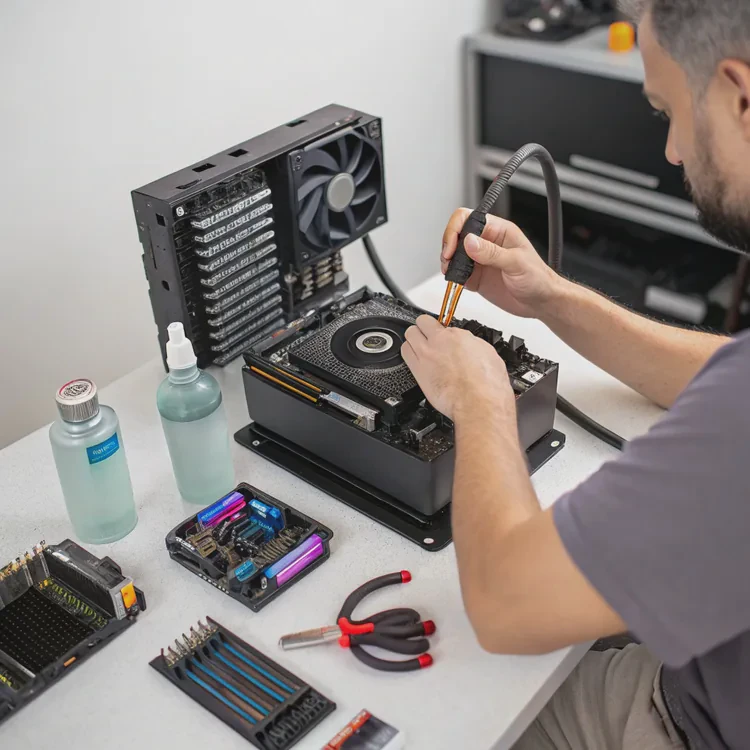
As CPUs become faster and more powerful, they generate more heat. If this heat isn’t removed efficiently, your computer’s performance drops and hardware lifespan shortens. Installing a liquid cooler can solve this problem effectively — it’s powerful, quiet, and designed for modern systems.
A liquid cooler works by circulating coolant through a closed loop to absorb heat from the CPU and release it through a radiator. Proper installation ensures safe, stable, and efficient cooling.
Let’s go through what a liquid cooler is, why it’s important for CPUs, how to install it safely, and what trends are shaping the next generation of cooling systems.
What is a liquid cooler?
Traditional air coolers rely on fans and metal fins to dissipate heat, but air isn’t the most efficient medium for heat transfer. Liquid cooling takes a different approach by using fluid instead of air to move heat away.
A liquid cooler is a closed-loop system that uses coolant, a pump, tubing, and a radiator to transfer heat from the CPU to the air outside the case.

Here’s how it works step-by-step:
- The cold plate (or pump block) sits on top of the CPU. It contains channels filled with coolant.
- The pump moves the heated liquid through tubes to the radiator.
- The radiator has thin fins and fans that release the heat into the surrounding air.
- The cooled liquid then returns to the cold plate to repeat the process.
Core Components Overview
| Component | Function |
|---|---|
| Cold Plate | Absorbs heat from the CPU |
| Pump | Circulates coolant through the loop |
| Tubes | Connect pump and radiator |
| Radiator | Transfers heat to the air |
| Fans | Boost airflow through radiator fins |
| Coolant | Fluid that absorbs and releases heat |
Liquid coolers are often called AIO (All-In-One) units because they come pre-filled, sealed, and ready to use. This design makes them much easier to install and maintain compared to custom water cooling systems.
Why use a liquid cooler for CPUs?
Air cooling works fine for average workloads, but when you’re running demanding applications or gaming at high performance levels, air can’t always keep up.
A liquid cooler provides higher thermal efficiency, quieter operation, and longer CPU lifespan — especially for high-performance systems.
Here are the main reasons to use a liquid cooler.
1. Higher Cooling Efficiency
Liquid has a much higher thermal conductivity and heat capacity than air, meaning it absorbs and moves heat faster. This results in lower CPU temperatures and more consistent performance, even during heavy tasks like rendering or gaming.
A well-installed liquid cooler can keep a CPU 20°C cooler than a standard air cooler under load.
2. Quieter Operation
Liquid coolers use larger, slower fans and a small, efficient pump. This design reduces noise compared to traditional air coolers that require high-speed fans to manage heat.
3. Stable Performance and Overclocking
Lower temperatures help prevent thermal throttling, where the CPU reduces its speed to avoid overheating. This stability is essential for gamers, engineers, and content creators who need reliable, continuous performance.
4. Space and Design Flexibility
Liquid coolers use slim cold plates and flexible tubes instead of large heatsinks. This saves space around the CPU and improves the appearance of the build with cleaner cable management.
5. Longer Component Lifespan
Maintaining stable, lower temperatures reduces thermal stress on the CPU and motherboard components, extending their life and reliability.
Air Cooling vs Liquid Cooling
| Feature | Air Cooling | Liquid Cooling |
|---|---|---|
| Cooling Power | Moderate | High |
| Noise Level | Louder | Quieter |
| Overclocking Support | Limited | Excellent |
| Space Efficiency | Bulky | Flexible |
| Longevity | Medium | Longer |
| Aesthetic Appeal | Basic | Sleek |
Liquid coolers not only perform better but also enhance the look and functionality of modern PCs.
How to install it safely and efficiently?
Installing a liquid cooler may seem intimidating, but it’s straightforward if you follow the correct steps. A careful setup ensures safe operation and maximum efficiency.
To install a liquid cooler, you must properly mount the radiator and fans, attach the pump block, apply thermal paste, connect cables, and test the system for stability.
Let’s go step by step.
Step 1: Prepare Your Workspace
Before starting, unplug your PC and remove both side panels. Place the case on a clean, flat surface with good lighting. Make sure you have the cooler’s manual, a screwdriver, and thermal paste (if needed).
Step 2: Plan Radiator Placement
Choose where to mount the radiator — typically top, front, or rear of the case.
- Top mount: Ideal for exhausting hot air out of the system.
- Front mount: Draws cool air into the radiator for stronger cooling.
- Rear mount: Works in smaller cases but less efficient.
Ensure the tubes can reach the CPU socket without bending sharply.
Step 3: Install Radiator and Fans
If your cooler’s fans aren’t pre-installed, attach them to the radiator using the screws provided. Check the direction of airflow — usually marked by arrows on the fan housing.
Secure the radiator to your chosen case location with screws. Tighten them evenly but don’t overtighten.
Step 4: Apply Thermal Paste
If your cooler doesn’t come with pre-applied thermal paste, apply a small pea-sized dot to the center of the CPU. This ensures full contact between the CPU and cold plate for efficient heat transfer.
Step 5: Attach the Pump Block
Align the pump block with your CPU socket. Use the correct backplate and mounting bracket for your CPU type (Intel or AMD).
Tighten screws in a cross pattern to distribute pressure evenly. Avoid overtightening.
Step 6: Connect Power Cables
- Pump cable → CPU_FAN or PUMP_FAN header on the motherboard.
- Fan cables → FAN headers or a fan controller.
- RGB cables (if applicable) → RGB header or controller for lighting.
Ensure all connections are secure before moving on.
Step 7: Organize and Secure Cables
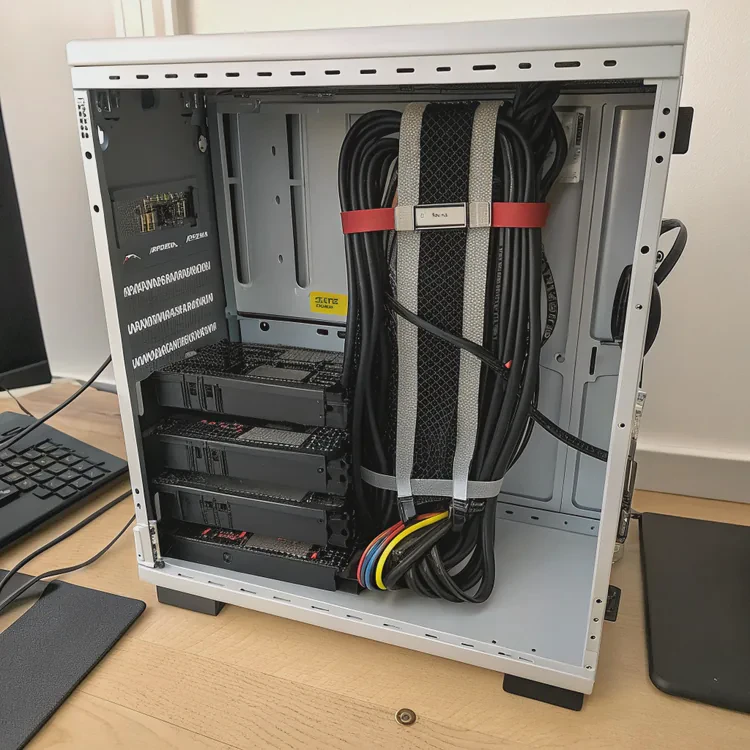
Use cable ties or Velcro straps to tidy up wires. This improves airflow and reduces clutter inside your case.
Step 8: Test the Cooler
Reconnect the power supply and boot up your PC. Enter the BIOS or use monitoring software to check CPU temperatures.
You should hear a faint hum from the pump and feel slight vibration, indicating it’s running.
Expected Temperature Results
| Condition | Air Cooling | Liquid Cooling |
|---|---|---|
| Idle | 40°C | 30°C |
| Gaming | 85°C | 60°C |
| Rendering | 95°C | 65°C |
Step 9: Verify Noise and Airflow
Run stress tests or games to check system stability. Adjust the fan curve in BIOS or cooling software to balance cooling power and noise level.
Safety Tips
- Never power on the system before securing the pump and radiator.
- Avoid trapping air bubbles — keep tubes below the top of the radiator when possible.
- Clean the radiator every few months to prevent dust buildup.
By following these steps carefully, you’ll ensure safe, efficient, and quiet cooling performance.
What trends shape cooler installation today?
As technology evolves, liquid cooler installation is becoming easier, smarter, and more reliable. Manufacturers are focusing on user convenience, automation, and sustainability.
The latest trends in cooler installation include tool-free mounting, AI-controlled cooling, modular components, magnetic connectors, and eco-friendly coolants.
Here’s what’s driving the future of CPU cooler installation.
1. Tool-Free Mounting Systems
Many modern AIO coolers use quick-lock brackets or snap-fit arms that eliminate the need for screwdrivers. This makes installation faster and safer, especially for beginners.
2. Magnetic Cable Connectors
Manufacturers are adopting magnetic power and fan connectors that attach automatically. These reduce cable clutter and prevent pin damage during setup.
3. Smart AI Control and Monitoring
Next-generation coolers come with built-in microcontrollers that monitor temperature, pump speed, and fan RPM. AI algorithms automatically adjust settings for optimal performance and minimal noise.
4. Modular and Customizable Components
Future cooling kits are becoming modular — allowing users to swap out pumps, radiators, or fans without replacing the whole system. This flexibility supports easy upgrades and repairs.
5. Compact Radiator Designs
Radiators are now thinner yet more efficient thanks to microchannel and vapor chamber technology. This makes installation easier in small cases without losing cooling power.
6. Eco-Friendly Coolants
Companies are shifting to non-toxic, biodegradable coolants that are safer for users and the environment. These fluids resist corrosion and extend cooler lifespan.
7. Integrated Diagnostics and LED Feedback
Some new coolers feature LED indicators that show system status — green for normal, red for overheating, blue for standby. This helps users monitor health instantly.
Trend Summary Table
| Trend | Description | Benefit |
|---|---|---|
| Tool-Free Mounting | Quick, snap-fit installation | Saves time |
| Magnetic Connectors | Easy, secure wiring | Cleaner build |
| AI Smart Control | Automated cooling adjustment | Quieter, efficient operation |
| Modular Design | Replaceable parts | Longer system life |
| Thin Radiators | Microchannel technology | Easier fit, high performance |
| Eco Coolants | Safe, biodegradable fluids | Sustainable choice |
| LED Feedback | Real-time system status | Easy diagnostics |
Looking Ahead
The future of liquid cooler installation is all about ease, intelligence, and sustainability. Users will install high-performance systems faster, with fewer tools, less noise, and better control.
Conclusion
Installing a liquid cooler safely and efficiently ensures long-term CPU performance, quiet operation, and modern aesthetics. By understanding each step — from radiator placement to cable management — you can achieve stable, powerful cooling. With tool-free mounts, AI control, and eco-friendly innovations, the next generation of liquid coolers makes high-end cooling simple for everyone.
TAGS
Latest Articles
Volume discount levels for heat sink orders?
Buyers often ask when heat sink prices start to drop with volume. Many worry they’re overpaying for small orders. This guide explains how B2B volume pricing works for thermal components. Heat sink
21 Dec,2025
Heat sink long-term supply contract options?
Many buyers want stable pricing and reliable delivery for heat sinks. But without a clear contract, risks grow over time. This article explores how to secure better long-term supply deals. Long-term
21 Dec,2025
Tooling cost for new heat sink profiles?
Many engineers struggle to understand why tooling for custom heat sinks costs so much. They worry about budgeting and production timelines. This article breaks down the cost drivers behind tooling.
21 Dec,2025
Heat sink custom sample process steps?
Sometimes, starting a custom heat sink project feels overwhelming—too many steps, too many unknowns, and too many risks. You want a sample, but not endless delays. The process for requesting and
20 Dec,2025
Standard B2B terms for heat sink payments?
When buyers and sellers in B2B heat sink markets talk about payment, many don’t fully understand what’s standard. This can lead to delayed orders, miscommunication, and even lost business
20 Dec,2025
Heat sink pricing factors for large orders?
Heat sinks are vital for many systems. When prices rise, projects stall and budgets break. This problem can hit teams hard without warning. Large order heat sink pricing depends on many factors. You
20 Dec,2025Related Articles
- How does a liquid CPU cooler work?
- How to install liquid cooling?
- How to install liquid CPU cooler?
- How to install a single liquid cooler CPU?
- Is liquid cooling better?
- Is liquid cooling better than air cooling?
- How to install liquid cooling on CPU?
- What is a liquid cooler?
- How to install CPU liquid cooler?
- How long does liquid cooling last?
- How to install liquid cooler?
- How long does a liquid cooler last?
Author
Dr. Emily Chen
Chief AI Researcher
Leading expert in thermal dynamics and AI optimization with over 15 years of experience in data center efficiency research.
Categories
Latest Products
Recommend Categories
- Liquid cooling plate Manufacturer
- Industrial Heat Sink Manufacturer
- Standard Heat Sink Manufacturer
- Aluminum Heat Sink Manufacturer
- Copper Heat Sink Manufacturer
- Anodized Heatsink Manufacturer
- Stamping heat sink Manufacturer
- Die Casting Heatsink Manufacturer
- Soldering heat sink Manufacturer
- CNC Parts Manufacturer
Latest Products
- Wholesale Aluminum Radiator
- Water Cooling Plate Kit
- Water Cooling Heat Sink
- Water Cooling Heat Sink Kit
- Stainless Steel Water Distributor
- Server Water Cooling Plate Kit
- Server Liquid Cooling System
- Server Aluminum Cooling Kit
- S19 Full Cover Cooling Plate
- S19 Cooling Plate Kit
- S19 Aluminum Cooling Plate
Contact Expert
Have questions about this article? Reach out to our experts directly.