How to install CPU liquid cooler?
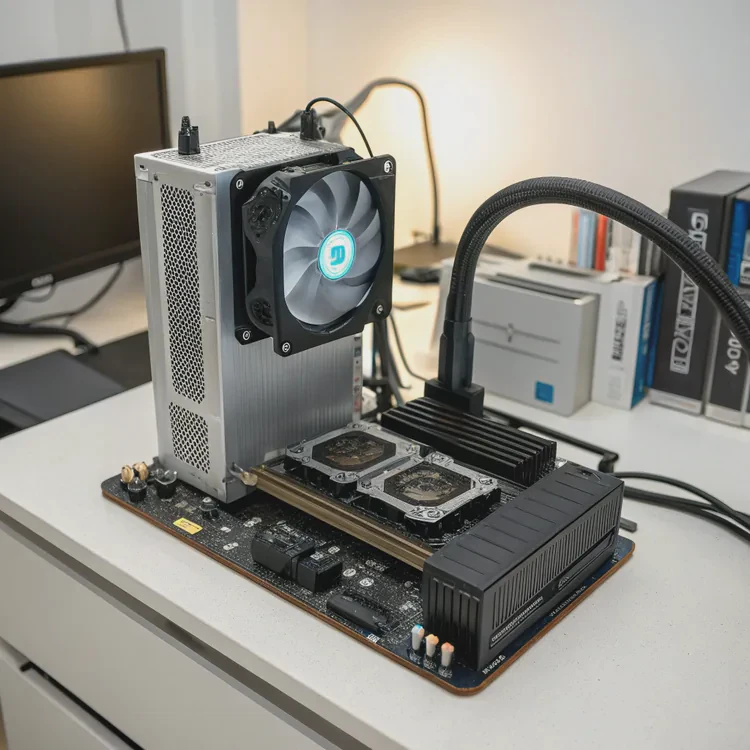
High-performance CPUs generate significant heat when under load. Without efficient cooling, they can throttle performance or even become damaged. That’s why many users now prefer CPU liquid cooling, a powerful and quiet way to maintain optimal temperatures.
Installing a CPU liquid cooler involves attaching the pump block to the processor, mounting the radiator and fans, connecting cables, and ensuring proper coolant circulation for stable and silent performance.
In this guide, you’ll learn what CPU liquid cooling is, the benefits of installation, a complete step-by-step setup process, and the newest trends shaping cooler installation today.
What is CPU liquid cooling?
Traditional air coolers use metal heatsinks and fans to move heat away from the CPU, but they rely on air, which isn’t an efficient heat carrier. Liquid cooling replaces air with a liquid coolant that can transfer heat much faster and more evenly.
CPU liquid cooling is a closed-loop system where liquid absorbs heat from the CPU and releases it through a radiator, maintaining stable temperatures under heavy workloads.
Here’s how it works:
- A cold plate sits on top of the CPU.
- Heat passes through the cold plate into the coolant inside small microchannels.
- The pump circulates the heated liquid through tubes to a radiator.
- The radiator and its fans release the heat into the air.
- The cooled liquid then returns to the CPU, repeating the cycle continuously.
Core Components of a CPU Liquid Cooler
| Component | Function |
|---|---|
| Cold Plate | Transfers heat from CPU to coolant |
| Pump | Moves liquid through the loop |
| Tubes | Carry liquid between cold plate and radiator |
| Radiator | Releases heat into the air |
| Fans | Increase airflow through the radiator |
| Coolant | The medium that carries heat away |
This closed system keeps your CPU at a consistent temperature with minimal noise and no need for constant maintenance.
What are the installation benefits?
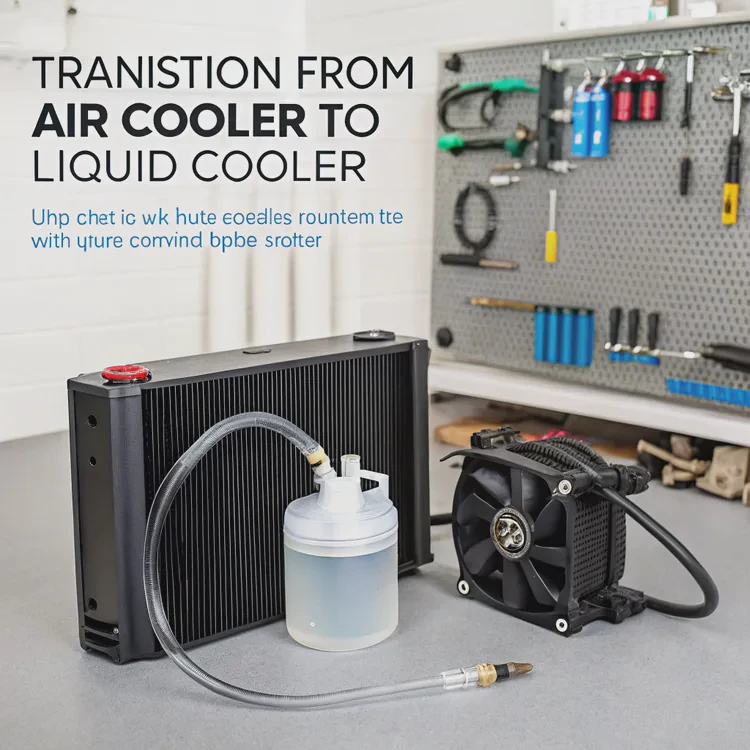
Switching from an air cooler to a liquid cooler may seem complicated, but it comes with significant long-term benefits.
Installing a CPU liquid cooler provides stronger cooling performance, quieter operation, space efficiency, and longer hardware lifespan compared to air coolers.
Let’s go through the key advantages.
1. Better Cooling Efficiency
Liquid has higher thermal conductivity than air, meaning it absorbs and moves heat more effectively. Under heavy loads like gaming, rendering, or data processing, liquid coolers keep temperatures lower and prevent throttling.
A high-quality liquid cooler can reduce CPU temperatures by up to 25°C compared to standard air cooling.
2. Quieter Performance
Air coolers use smaller fans that spin fast to push air through tight fins, which creates noise. Liquid cooling systems rely on slower, larger fans and a small pump, resulting in near-silent operation even under pressure.
3. Space and Design Flexibility
The radiator can be mounted anywhere in your case, freeing up room around the CPU socket. This improves airflow and makes your build look cleaner and more professional.
4. Stable Overclocking
Liquid cooling maintains steady temperatures, allowing users to safely overclock CPUs for better performance without overheating.
5. Extended Hardware Life
Lower and consistent temperatures reduce thermal stress on the CPU and surrounding components, extending their lifespan.
6. Modern and Clean Aesthetics
Many liquid coolers feature sleek designs and customizable RGB lighting, enhancing the appearance of your setup.
Air vs Liquid Cooling Comparison
| Feature | Air Cooling | Liquid Cooling |
|---|---|---|
| Heat Transfer | Moderate | High |
| Noise Level | Higher | Lower |
| Space Use | Bulky | Flexible |
| Maintenance | Minimal | Minimal |
| Lifespan | Average | Longer |
| Performance Stability | Variable | Consistent |
| Aesthetic Appeal | Basic | Premium |
For users who value silence, performance, and style, liquid cooling is the superior choice.
How to install it step-by-step?
Installing a CPU liquid cooler is easier than it looks. With a little preparation and patience, anyone can set it up safely.
To install a CPU liquid cooler properly, you need to mount the radiator, attach the pump to the CPU, connect power and fan cables, and verify cooling performance after setup.
Here’s a detailed step-by-step guide.
Step 1: Prepare the Case and Tools
Shut down your computer and unplug all power cables. Remove both side panels to access the interior.
Gather:
- A Phillips screwdriver
- The cooler mounting hardware (usually included)
- Thermal paste (if not pre-applied)
Check that your case supports the cooler’s radiator size (120mm, 240mm, or 360mm).
Step 2: Plan Radiator Placement
Choose where to mount the radiator:
- Top mount: Best for exhausting hot air out of the case.
- Front mount: Pulls in cool air, ideal for CPU cooling efficiency.
- Rear mount: Suitable for compact systems but less common.
Ensure the tubes reach the CPU socket comfortably without kinks or tension.
Step 3: Attach the Fans to the Radiator
If your fans aren’t pre-installed, screw them onto the radiator now. Check the airflow arrows on the fans — they should align with your cooling direction.
Then, secure the radiator to the case using the provided screws.
Step 4: Apply Thermal Paste
If the cooler doesn’t come with pre-applied paste, apply a small pea-sized amount of thermal paste to the center of the CPU. This ensures full contact between the CPU and cold plate.
Step 5: Mount the Pump Block
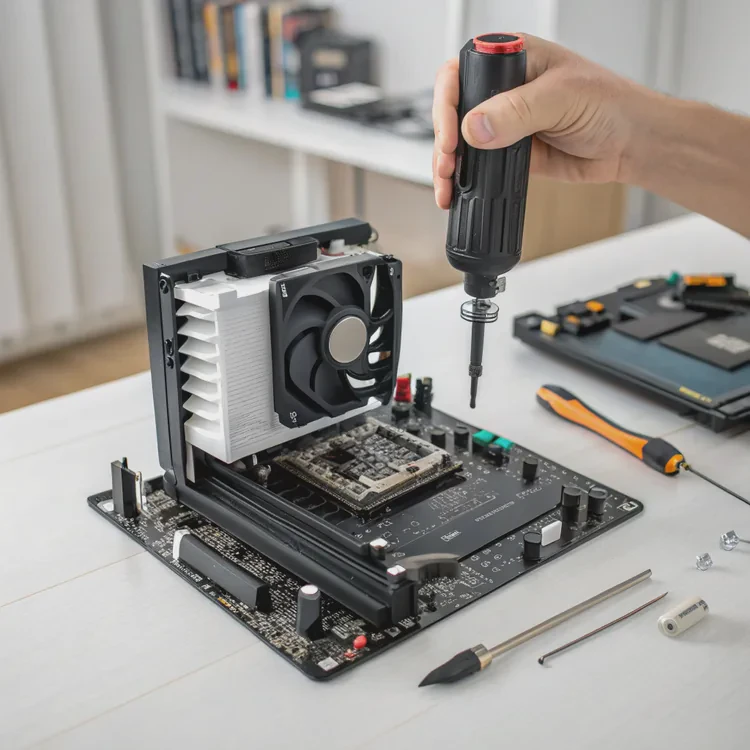
Attach the appropriate backplate and bracket for your CPU type (Intel or AMD). Align the pump block over the CPU and gently tighten screws in a cross pattern to apply even pressure.
Do not overtighten — firm contact is enough.
Step 6: Connect Cables and Power
- Pump power cable → Motherboard’s PUMP_FAN or CPU_FAN header.
- Radiator fans → FAN headers or fan controller.
- RGB lighting cables → RGB/ARGB header if available.
Double-check all connections to ensure stable power and control.
Step 7: Manage and Organize Cables
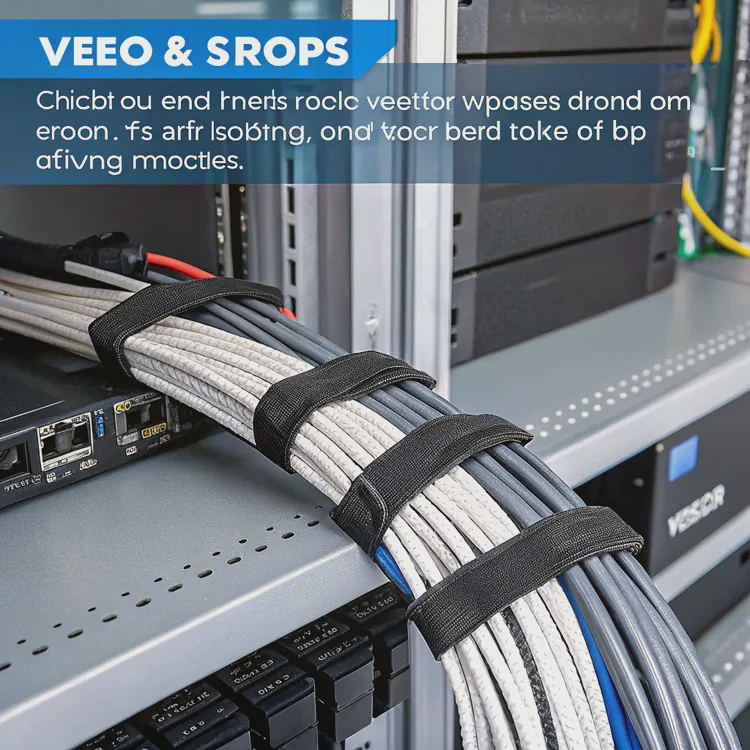
Use zip ties or Velcro straps to secure cables neatly. Keep them clear of fans and moving components for better airflow and safety.
Step 8: Boot and Test the System
Reconnect your power supply and start your PC.
Enter BIOS or use monitoring software (such as HWMonitor, MSI Afterburner, or NZXT CAM) to check CPU temperature.
You should see:
- Idle temperatures: around 30°C
- Load temperatures: under 70°C during stress tests
If the pump hums softly and fans spin smoothly, your installation was successful.
Example Temperature Comparison
| Condition | Air Cooling | Liquid Cooling |
|---|---|---|
| Idle | 40°C | 30°C |
| Gaming | 85°C | 60°C |
| Rendering | 95°C | 65°C |
Step 9: Adjust Fan Curves (Optional)
In BIOS or software, set fan curves to increase gradually with CPU temperature. This keeps your system quiet during light tasks and efficient under load.
Step 10: Regular Maintenance
While AIO liquid coolers are low-maintenance, it’s good practice to clean radiator fins every few months and check fan operation to maintain optimal performance.
Following these steps ensures a safe, effective, and quiet CPU cooling setup.
What new methods exist for CPU cooler setup?
As hardware becomes more powerful, manufacturers are making coolers easier to install and smarter to operate.
The newest CPU cooler setup methods include tool-free installation, AI-based control, magnetic connectors, modular systems, and eco-friendly coolants.
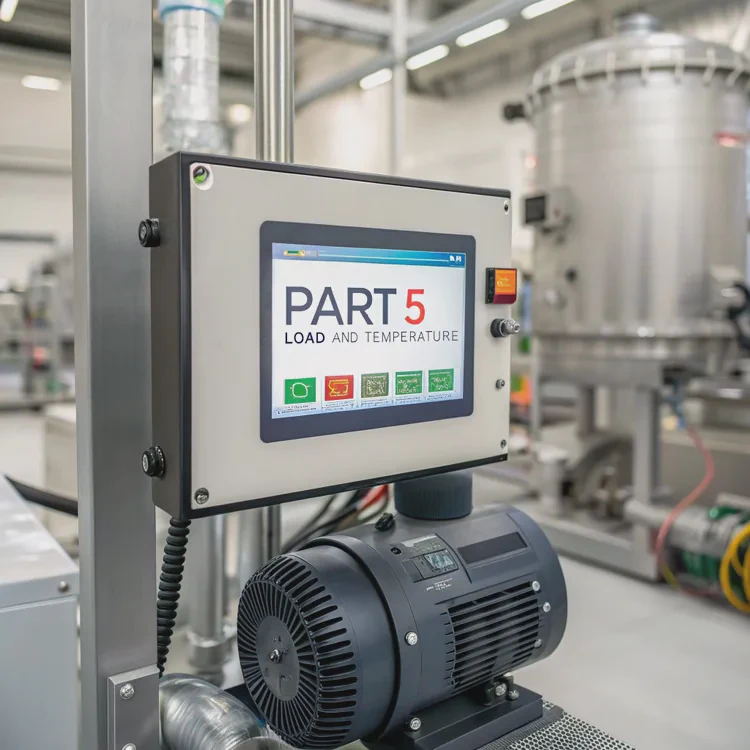
Here’s how these new trends are shaping the future of CPU cooling installation.
1. Tool-Free Mounting Systems
Modern coolers use snap-in brackets and spring-loaded arms instead of screws, allowing users to install or remove coolers without tools. This saves time and prevents overtightening errors.
2. Magnetic Cable Connections
Newer models come with magnetic fan and pump connectors that attach automatically. These eliminate the risk of bending pins and simplify cable management.
3. Smart Pump and Fan Control
Some coolers feature built-in microcontrollers that monitor CPU load and temperature, automatically adjusting pump speed and fan curves for optimal performance. AI-based systems learn user behavior for quieter, smarter operation.
4. Modular Cooler Components
Manufacturers are designing modular AIO coolers where users can replace pumps, fans, or radiators individually. This extends product life and allows easy customization without replacing the entire cooler.
5. Compact Radiators and Cold Plates
Thanks to microchannel design, radiators and cold plates are becoming thinner but more efficient. These smaller units fit easily into compact cases without sacrificing cooling performance.
6. Eco-Friendly Coolants
Modern coolers now use biodegradable, non-toxic coolants that are safer and more sustainable. These fluids resist corrosion and extend system reliability.
7. Integrated Diagnostics
Some next-generation coolers include LED indicators or software alerts that inform users if the pump stops or coolant levels drop — helping detect issues before damage occurs.
Innovation Summary Table
| Innovation | Description | User Benefit |
|---|---|---|
| Tool-Free Mounting | Snap-fit and quick-lock systems | Faster installation |
| Magnetic Connectors | Cable attachment via magnets | Cleaner and easier setup |
| Smart AI Control | Automated fan and pump management | Optimal cooling, minimal noise |
| Modular Design | Replaceable components | Longer lifespan |
| Microchannel Radiators | Compact and efficient designs | Better compatibility |
| Eco Coolants | Non-toxic, recyclable fluids | Sustainability |
| Built-in Diagnostics | LED or software alerts | Early issue detection |
These advances make installing CPU liquid coolers faster, safer, and more accessible to everyone — from casual builders to professional engineers.
Conclusion
Installing a CPU liquid cooler ensures superior temperature control, silent operation, and long-lasting performance. By following each installation step carefully and staying aware of modern innovations like tool-free mounts, magnetic connections, and AI optimization, you can enjoy efficient and future-ready cooling for years to come.
TAGS
Latest Articles
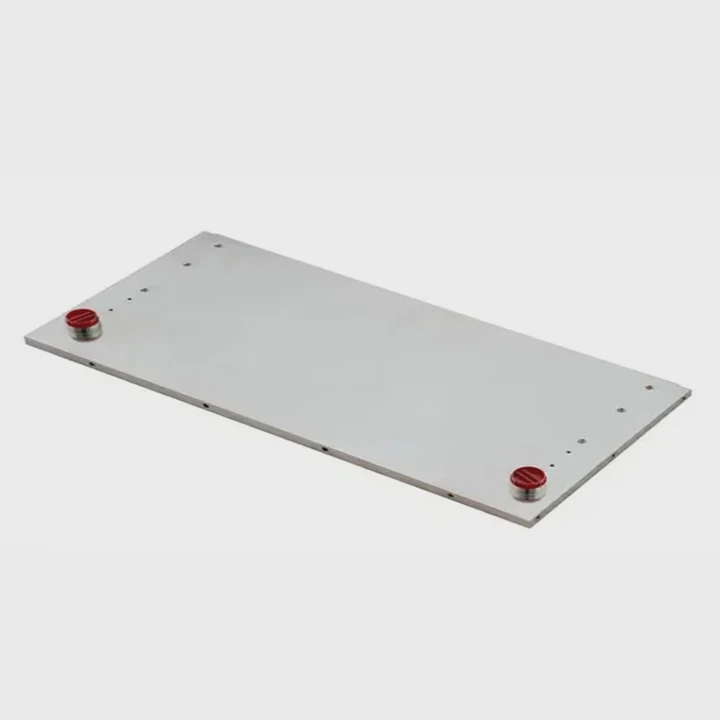
Volume discount levels for heat sink orders?
Buyers often ask when heat sink prices start to drop with volume. Many worry they’re overpaying for small orders. This guide explains how B2B volume pricing works for thermal components. Heat sink
21 Dec,2025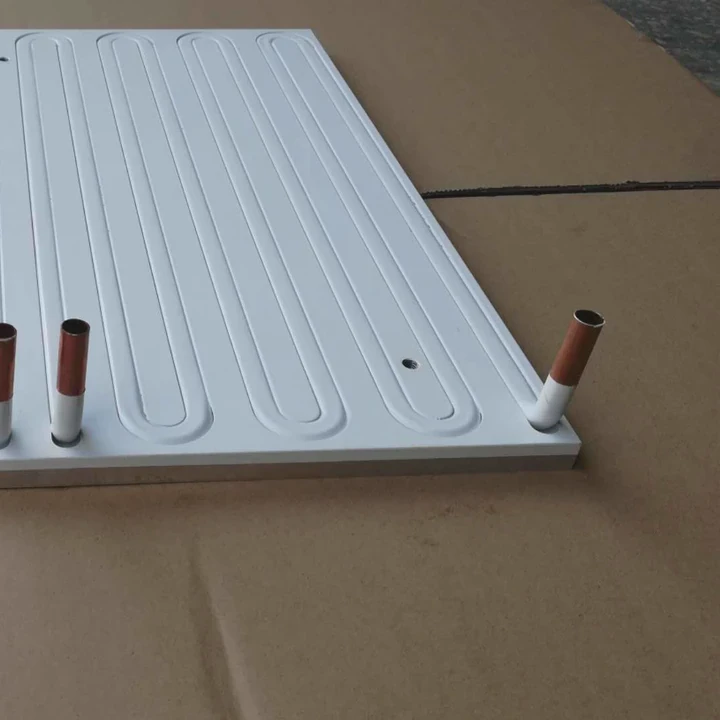
Heat sink long-term supply contract options?
Many buyers want stable pricing and reliable delivery for heat sinks. But without a clear contract, risks grow over time. This article explores how to secure better long-term supply deals. Long-term
21 Dec,2025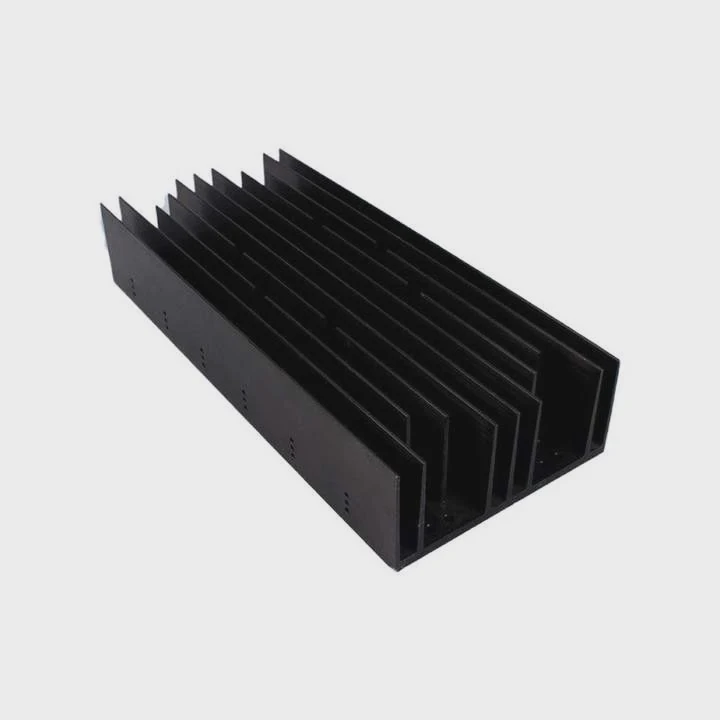
Tooling cost for new heat sink profiles?
Many engineers struggle to understand why tooling for custom heat sinks costs so much. They worry about budgeting and production timelines. This article breaks down the cost drivers behind tooling.
21 Dec,2025
Heat sink custom sample process steps?
Sometimes, starting a custom heat sink project feels overwhelming—too many steps, too many unknowns, and too many risks. You want a sample, but not endless delays. The process for requesting and
20 Dec,2025
Standard B2B terms for heat sink payments?
When buyers and sellers in B2B heat sink markets talk about payment, many don’t fully understand what’s standard. This can lead to delayed orders, miscommunication, and even lost business
20 Dec,2025
Heat sink pricing factors for large orders?
Heat sinks are vital for many systems. When prices rise, projects stall and budgets break. This problem can hit teams hard without warning. Large order heat sink pricing depends on many factors. You
20 Dec,2025Related Articles
- What is a liquid cooler?
- How to install liquid cooling on CPU?
- How to install a liquid cooler?
- How does a liquid CPU cooler work?
- How to install liquid cooling?
- How to install liquid CPU cooler?
- How long does liquid cooling last?
- How to install liquid cooler?
- How long does a liquid cooler last?
- Does liquid cooling need to be refilled?
- How does liquid CPU cooling work?
- Heat Sink Manufacturer in El Salvador
Author
Dr. Emily Chen
Chief AI Researcher
Leading expert in thermal dynamics and AI optimization with over 15 years of experience in data center efficiency research.
Categories
Latest Products
Recommend Categories
- Liquid cooling plate Manufacturer
- Industrial Heat Sink Manufacturer
- Standard Heat Sink Manufacturer
- Aluminum Heat Sink Manufacturer
- Copper Heat Sink Manufacturer
- Anodized Heatsink Manufacturer
- Stamping heat sink Manufacturer
- Die Casting Heatsink Manufacturer
- Soldering heat sink Manufacturer
- CNC Parts Manufacturer
Latest Products
- Wholesale Aluminum Radiator
- Water Cooling Plate Kit
- Water Cooling Heat Sink
- Water Cooling Heat Sink Kit
- Stainless Steel Water Distributor
- Server Water Cooling Plate Kit
- Server Liquid Cooling System
- Server Aluminum Cooling Kit
- S19 Full Cover Cooling Plate
- S19 Cooling Plate Kit
- S19 Aluminum Cooling Plate
Contact Expert
Have questions about this article? Reach out to our experts directly.