How to install liquid cooling?
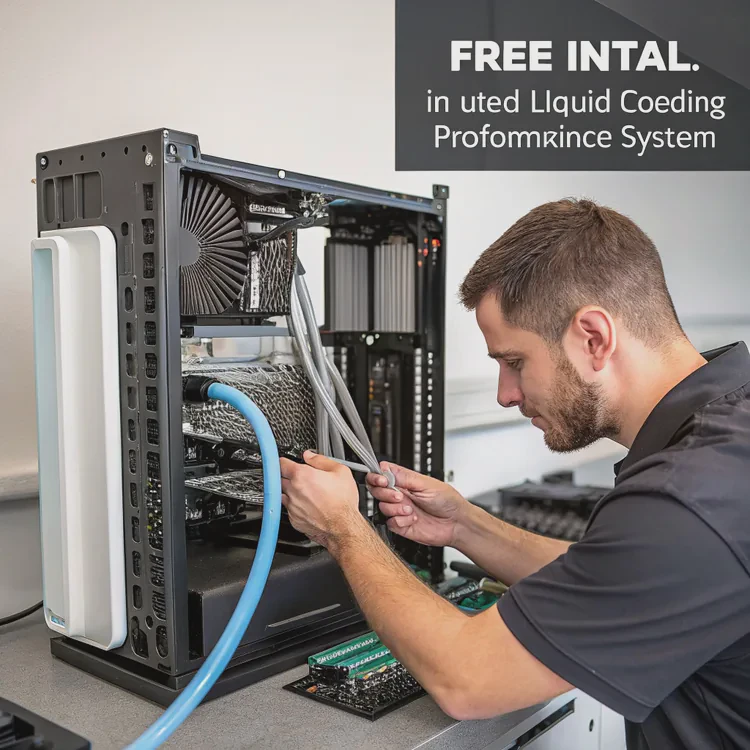
High-performance computers generate a lot of heat. When heat builds up, your system slows down, becomes noisy, and may even shut off. Liquid cooling is one of the most effective ways to fix this problem.
Installing liquid cooling involves setting up a closed-loop system that circulates coolant from the CPU or GPU to a radiator, where heat is released, keeping your PC cool and quiet.
Let’s explore how liquid cooling works, why it’s useful, and how to install it step by step — plus new trends that make installation easier than ever.
What is a liquid cooling system?
Every PC needs cooling. As CPUs and GPUs get faster, air coolers can’t always keep up. That’s where liquid cooling systems come in.
A liquid cooling system uses a liquid coolant to transfer heat from components like the CPU or GPU to a radiator, which releases the heat into the air.
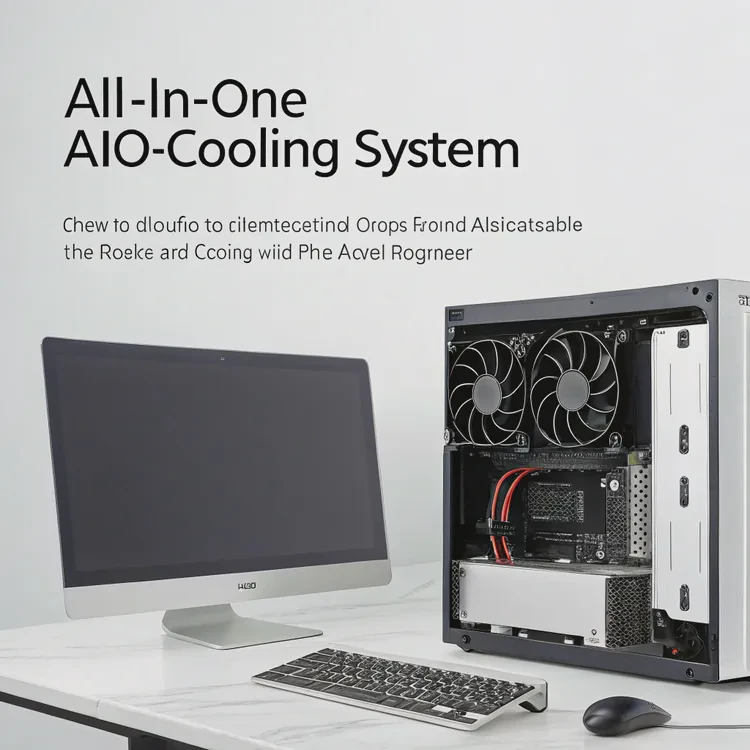
How the System Works
The system forms a closed loop:
- The CPU or GPU generates heat.
- A cold plate (pump block) absorbs the heat.
- The coolant flows through tubes to the radiator.
- The radiator’s fans push air through metal fins to remove heat.
- The cooled liquid returns to the cold plate, repeating the cycle.
Main Components Overview
| Component | Function |
|---|---|
| Cold Plate (Pump Block) | Transfers heat from the component to the liquid |
| Tubes | Carry coolant through the system |
| Radiator | Releases heat from the coolant |
| Fans | Move air through the radiator fins |
| Coolant | Fluid that carries heat away from the CPU or GPU |
Liquid cooling works better than air cooling because liquid has higher heat capacity and conductivity. This allows it to move energy away faster and maintain lower, more stable temperatures.
Types of Liquid Cooling Systems
| Type | Description | Maintenance |
|---|---|---|
| AIO (All-In-One) | Pre-filled, sealed system for easy setup | Minimal |
| Custom Loop | Fully customized with separate pump, reservoir, and tubing | Regular maintenance |
AIO systems are perfect for beginners or users who want simple installation without handling fluids. Custom loops offer better flexibility and visual appeal for advanced users.
Why install liquid cooling for your PC?
When performance and silence matter, liquid cooling delivers both. It’s not just about lower temperatures — it’s about efficiency, stability, and style.
Installing liquid cooling improves heat dissipation, reduces noise, extends component lifespan, and enhances your PC’s overall performance and appearance.
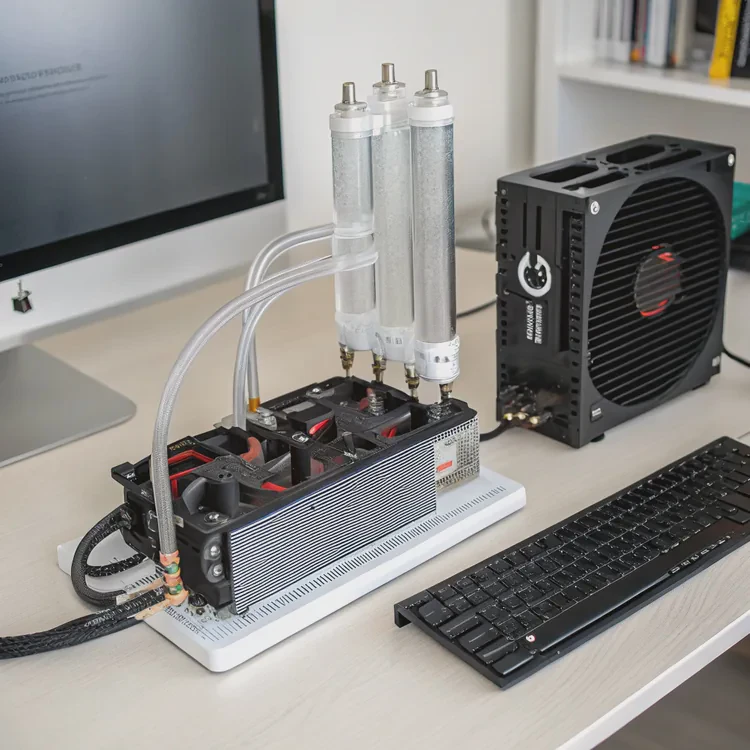
Here’s why more people are switching from air to liquid cooling.
1. Improved Thermal Efficiency
Liquid moves heat much faster than air. With a higher thermal capacity, coolant absorbs large amounts of heat before its temperature rises. This means your CPU or GPU stays cooler under heavy loads.
For example, during gaming or rendering, a liquid-cooled CPU might stay at 60°C, while an air-cooled one could reach 85°C or higher.
2. Quieter Operation
Traditional air coolers rely on multiple small fans spinning at high speed, which creates noise. Liquid cooling systems use a pump and a few larger fans on the radiator. They spin slower but move more air, keeping things quiet.
3. Longer Hardware Lifespan
High temperatures shorten component life. By maintaining stable and lower operating temperatures, liquid cooling reduces wear on CPU, GPU, and motherboard components.
4. Better Aesthetics and Space Management
Liquid cooling frees space around the CPU socket and looks more elegant. With sleek tubes and RGB lighting, it gives your build a clean and futuristic look.
5. Stable Overclocking Performance
If you overclock your CPU or GPU, liquid cooling provides better thermal headroom. The system can sustain high performance without throttling or overheating.
Comparison: Air vs Liquid Cooling
| Feature | Air Cooling | Liquid Cooling |
|---|---|---|
| Cooling Power | Moderate | High |
| Noise | Louder | Quieter |
| Aesthetics | Basic | Stylish |
| Space | Bulky | Compact |
| Maintenance | Low | Low to Medium |
| Price | Lower | Higher |
| Overclocking Stability | Limited | Excellent |
In short, liquid cooling keeps your PC cooler, quieter, and more reliable — perfect for gaming, design, or professional workloads.
How to properly install liquid cooling?
Installing liquid cooling is simple with the right steps and preparation. Even beginners can do it with an AIO (All-In-One) kit.
To install a liquid cooling system, mount the radiator, attach the pump block, connect tubing, power the pump and fans, and test temperatures after setup.
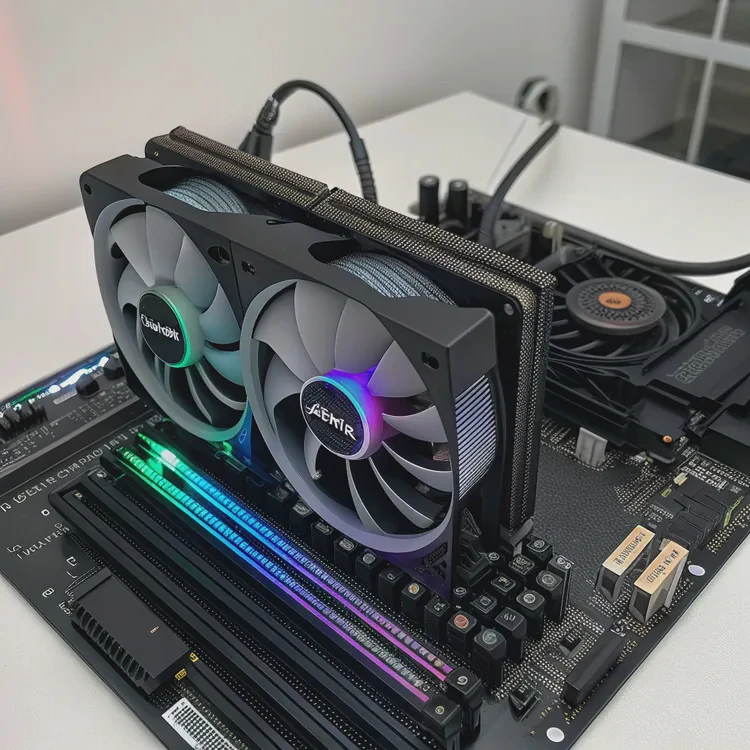
Let’s go through the process step by step.
Step 1: Prepare Your Workspace
Unplug your PC and place it on a flat, clean surface. Remove the side panels for easy access. Make sure you have a screwdriver and the included mounting hardware ready.
Step 2: Plan Radiator Placement
Decide where to mount the radiator — top, front, or rear of your case.
- Top mount: Ideal for exhausting hot air out.
- Front mount: Draws cool air in, improving overall system airflow.
- Rear mount: Works for small cases, but less efficient.
Ensure that the tubes can reach your CPU socket comfortably without kinking or stretching.
Step 3: Install the Radiator and Fans
If the fans aren’t pre-attached, screw them onto the radiator first. Make sure they’re oriented correctly — airflow direction should match your cooling plan.
Then, secure the radiator to the case using the included screws. Keep it firmly in place to avoid vibration.
Step 4: Apply Thermal Paste
If your cooler has pre-applied paste, skip this step. Otherwise, apply a small pea-sized drop of thermal paste to the center of your CPU. This creates efficient heat transfer between surfaces.
Step 5: Mount the Pump Block
Align the pump block with your CPU socket. Attach the appropriate mounting bracket and backplate (Intel or AMD specific). Tighten screws diagonally to ensure even pressure.
Avoid over-tightening, which can damage the CPU or motherboard.
Step 6: Connect Power and Control Cables
- Plug the pump cable into the CPU_FAN or PUMP_FAN header on the motherboard.
- Connect the radiator fans to FAN headers or a fan controller.
- Attach RGB or lighting cables if your cooler has them.
Check all cables to ensure they’re firmly connected.
Step 7: Organize the Cables
Use cable ties to tidy up the wires. Keep them away from fan blades and airflow paths for safety and clean appearance.
Step 8: Power On and Test
Reconnect your PC and turn it on. Check the BIOS or use monitoring software (like HWMonitor or CAM) to track CPU temperatures.
A properly installed liquid cooler should keep idle temperatures around 25–35°C and load temperatures below 70°C.
Example Temperature Results
| Workload | Air Cooling | Liquid Cooling |
|---|---|---|
| Idle | 40°C | 30°C |
| Gaming | 85°C | 60°C |
| Rendering | 95°C | 65°C |
If you hear the pump running softly and fans spinning smoothly, your installation is successful.
Common Mistakes to Avoid
- Forgetting to remove protective plastic from the cooler base.
- Misaligning radiator airflow direction.
- Not plugging the pump into the correct header.
- Using too much thermal paste.
Avoiding these mistakes ensures better cooling and longer system life.
What are the trends in easy-install cooling kits?
Liquid cooling technology is evolving quickly, and manufacturers are making systems easier, safer, and smarter to install.
The latest trends in liquid cooling include tool-free installation, AI-based pump control, compact designs, and eco-friendly materials that simplify setup and improve performance.
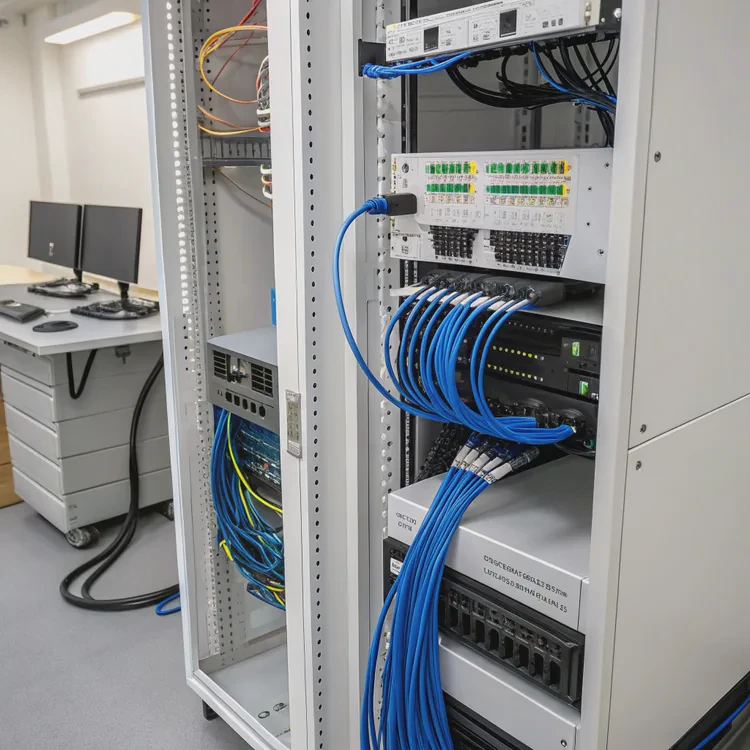
Here are the main innovations shaping the next generation of easy-install cooling kits.
1. Tool-Free Mounting Systems
Modern AIO coolers feature snap-fit brackets and spring-loaded arms that let users install the pump block without tools. This reduces installation time and prevents overtightening.
2. Magnetic Cable Connectors
Magnetic connectors replace traditional plugs for fan and power connections. They align automatically and click into place, making cable management easier and more reliable.
3. Smart Pump and Fan Control
Some new models include AI control chips that adjust pump and fan speeds based on temperature and load. This maintains optimal cooling and minimizes noise without manual tuning.
4. Compact and Modular Radiators
Radiators are becoming thinner and more efficient. Modular units allow users to easily swap parts — such as pumps or fans — without replacing the entire cooler.
5. Pre-Applied Thermal Pads
Instead of messy thermal paste, some AIO coolers now use pre-applied thermal pads. They create even contact and can be reused, making installation cleaner and faster.
6. Built-In Diagnostics and Monitoring
New coolers include LED indicators or software dashboards that show pump speed, coolant temperature, and system status. This helps users detect issues early and ensures safe operation.
7. Eco-Friendly Designs
Manufacturers are adopting biodegradable coolants and recyclable materials for radiators and housings. This trend reduces environmental impact and aligns with global sustainability goals.
Innovation Summary Table
| Innovation | Description | User Benefit |
|---|---|---|
| Tool-Free Mounting | Snap-on installation brackets | Faster, safer setup |
| Magnetic Connectors | Magnetic power and fan plugs | Simplified wiring |
| AI Control | Smart pump/fan speed management | Quieter, efficient cooling |
| Modular Radiator | Swappable parts | Easier maintenance |
| Thermal Pads | Pre-applied heat interface | Cleaner installation |
| LED Monitoring | Real-time pump/fan status | Instant diagnostics |
These innovations are transforming how users install and maintain liquid cooling — from a technical task into a quick, plug-and-play process.
Conclusion
Installing liquid cooling is an excellent way to improve your PC’s performance, stability, and silence. With proper setup, it keeps temperatures low and components lasting longer. As easy-install kits evolve with tool-free mounts, AI control, and modular parts, anyone — even first-time builders — can enjoy professional-grade cooling with minimal effort.
TAGS
Latest Articles
Volume discount levels for heat sink orders?
Buyers often ask when heat sink prices start to drop with volume. Many worry they’re overpaying for small orders. This guide explains how B2B volume pricing works for thermal components. Heat sink
21 Dec,2025
Heat sink long-term supply contract options?
Many buyers want stable pricing and reliable delivery for heat sinks. But without a clear contract, risks grow over time. This article explores how to secure better long-term supply deals. Long-term
21 Dec,2025
Tooling cost for new heat sink profiles?
Many engineers struggle to understand why tooling for custom heat sinks costs so much. They worry about budgeting and production timelines. This article breaks down the cost drivers behind tooling.
21 Dec,2025
Heat sink custom sample process steps?
Sometimes, starting a custom heat sink project feels overwhelming—too many steps, too many unknowns, and too many risks. You want a sample, but not endless delays. The process for requesting and
20 Dec,2025
Standard B2B terms for heat sink payments?
When buyers and sellers in B2B heat sink markets talk about payment, many don’t fully understand what’s standard. This can lead to delayed orders, miscommunication, and even lost business
20 Dec,2025
Heat sink pricing factors for large orders?
Heat sinks are vital for many systems. When prices rise, projects stall and budgets break. This problem can hit teams hard without warning. Large order heat sink pricing depends on many factors. You
20 Dec,2025Related Articles
- How to install liquid CPU cooler?
- How to install a single liquid cooler CPU?
- Is liquid cooling better?
- Is liquid cooling better than air cooling?
- How does liquid cooling work?
- How much more is liquid cooling?
- How does a liquid CPU cooler work?
- How to install a liquid cooler?
- How to install liquid cooling on CPU?
- What is a liquid cooler?
- How to install CPU liquid cooler?
- How long does liquid cooling last?
Author
Dr. Emily Chen
Chief AI Researcher
Leading expert in thermal dynamics and AI optimization with over 15 years of experience in data center efficiency research.
Categories
Latest Products
Recommend Categories
- Liquid cooling plate Manufacturer
- Industrial Heat Sink Manufacturer
- Standard Heat Sink Manufacturer
- Aluminum Heat Sink Manufacturer
- Copper Heat Sink Manufacturer
- Anodized Heatsink Manufacturer
- Stamping heat sink Manufacturer
- Die Casting Heatsink Manufacturer
- Soldering heat sink Manufacturer
- CNC Parts Manufacturer
Latest Products
- Wholesale Aluminum Radiator
- Water Cooling Plate Kit
- Water Cooling Heat Sink
- Water Cooling Heat Sink Kit
- Stainless Steel Water Distributor
- Server Water Cooling Plate Kit
- Server Liquid Cooling System
- Server Aluminum Cooling Kit
- S19 Full Cover Cooling Plate
- S19 Cooling Plate Kit
- S19 Aluminum Cooling Plate
Contact Expert
Have questions about this article? Reach out to our experts directly.